Find TikTok Shop posts that spend with no orders in GMV Max
Compares each GMV Max post with the winning posts, lists those that spent more than an order usually costs but got none, and can remove them after you confirm.
Updated
- Free
- Ready in one click
- Needs a TikTok Ads connection
- 1
Download skill
Click the button
- 2
Add to your assistant
A few steps below
- 3
Paste a prompt
Fill in, get your answer
From guesswork to a clear answer
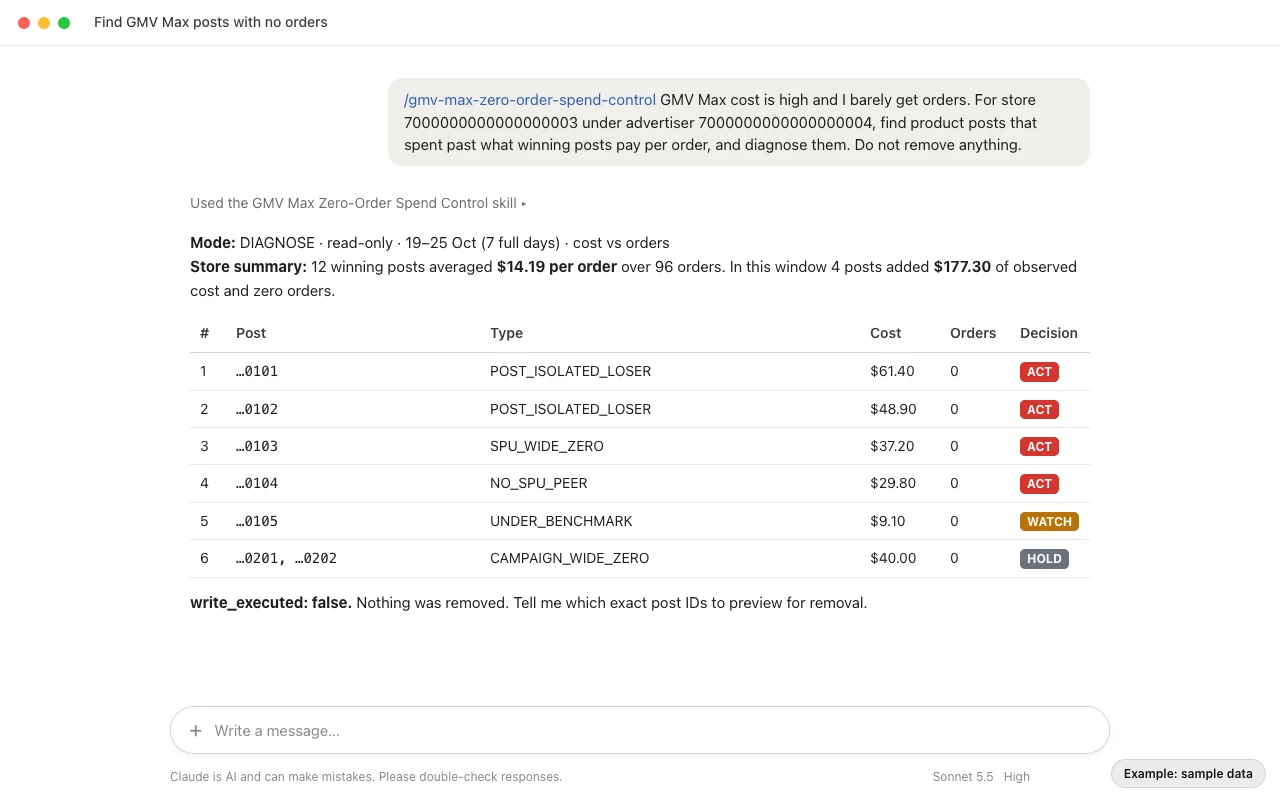
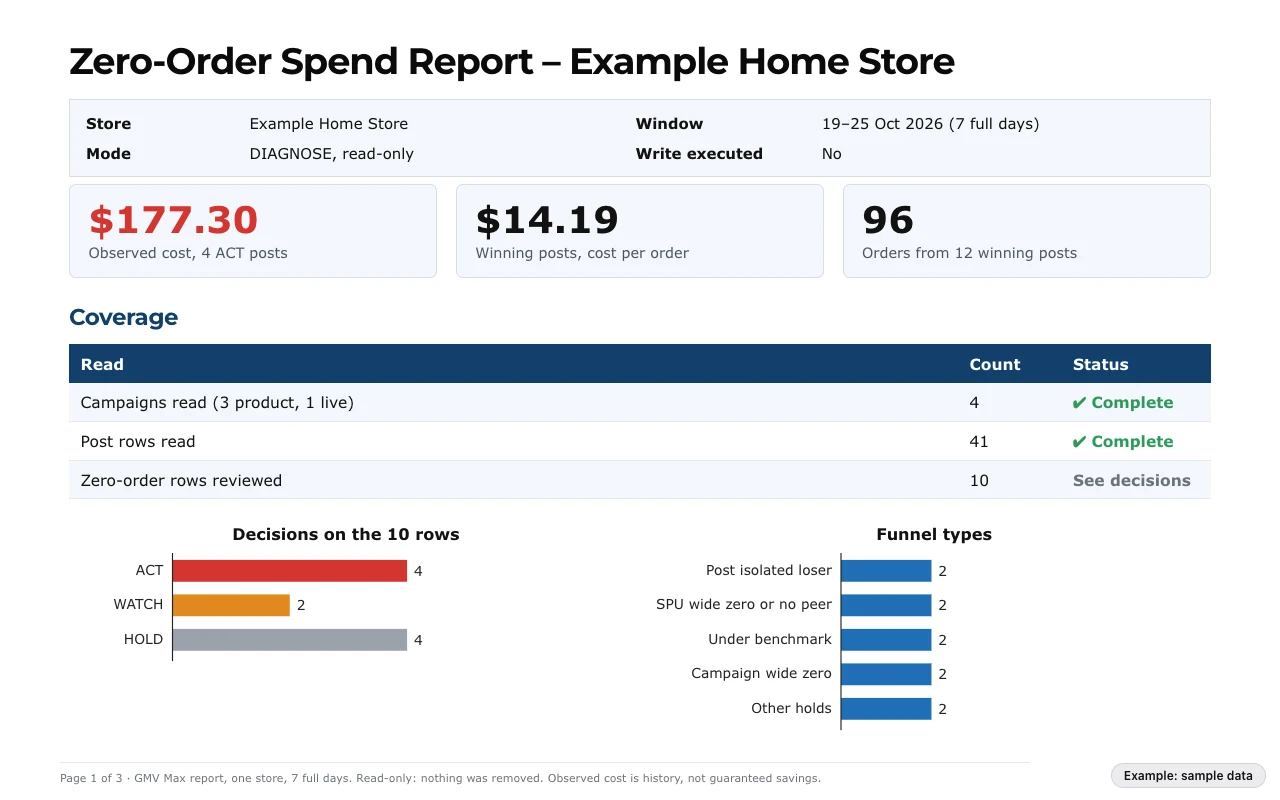
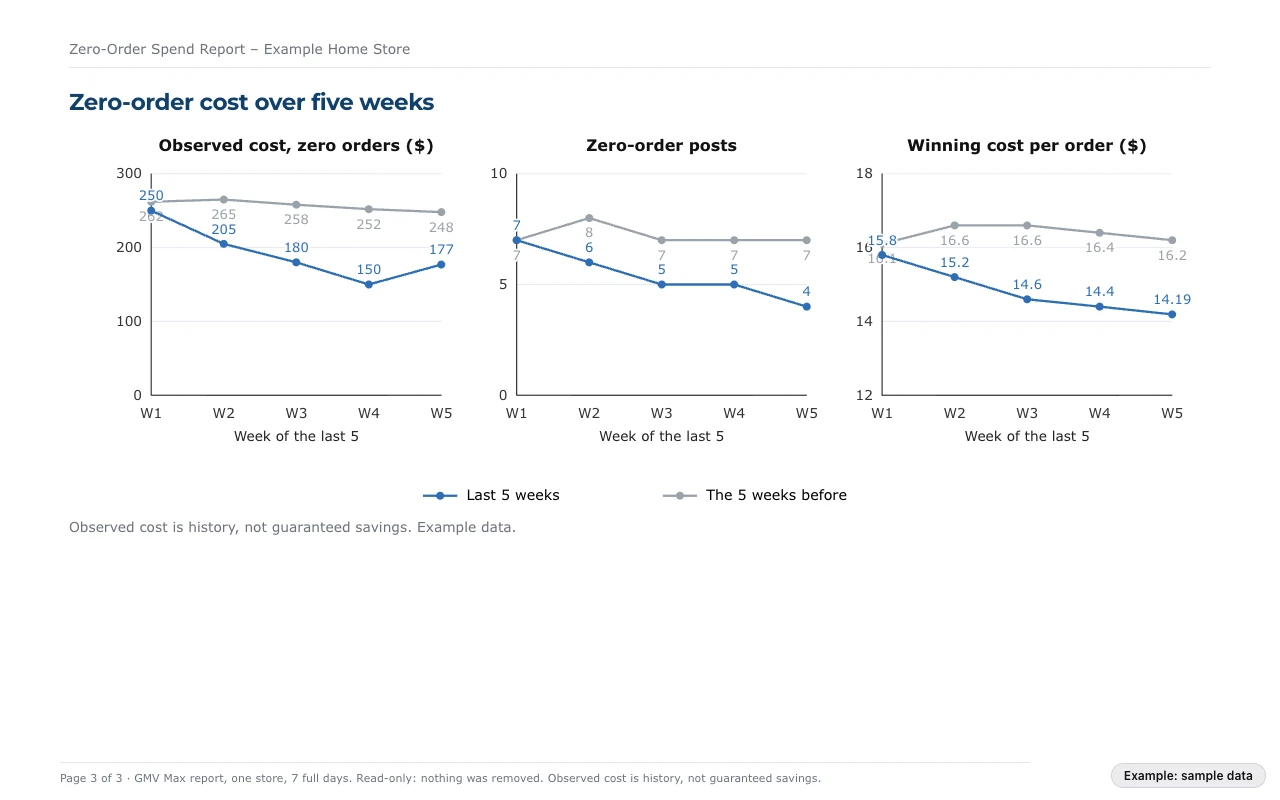
You get a ranked list of posts that spent past what winning posts pay per order and have no orders.
Before: Your GMV Max cost is high and you cannot see which posts are spending without orders.
You get each post labelled, for example a loser among winners of the same product, or a product where no post sells, with the numbers.
Before: You do not know why a post is not selling.
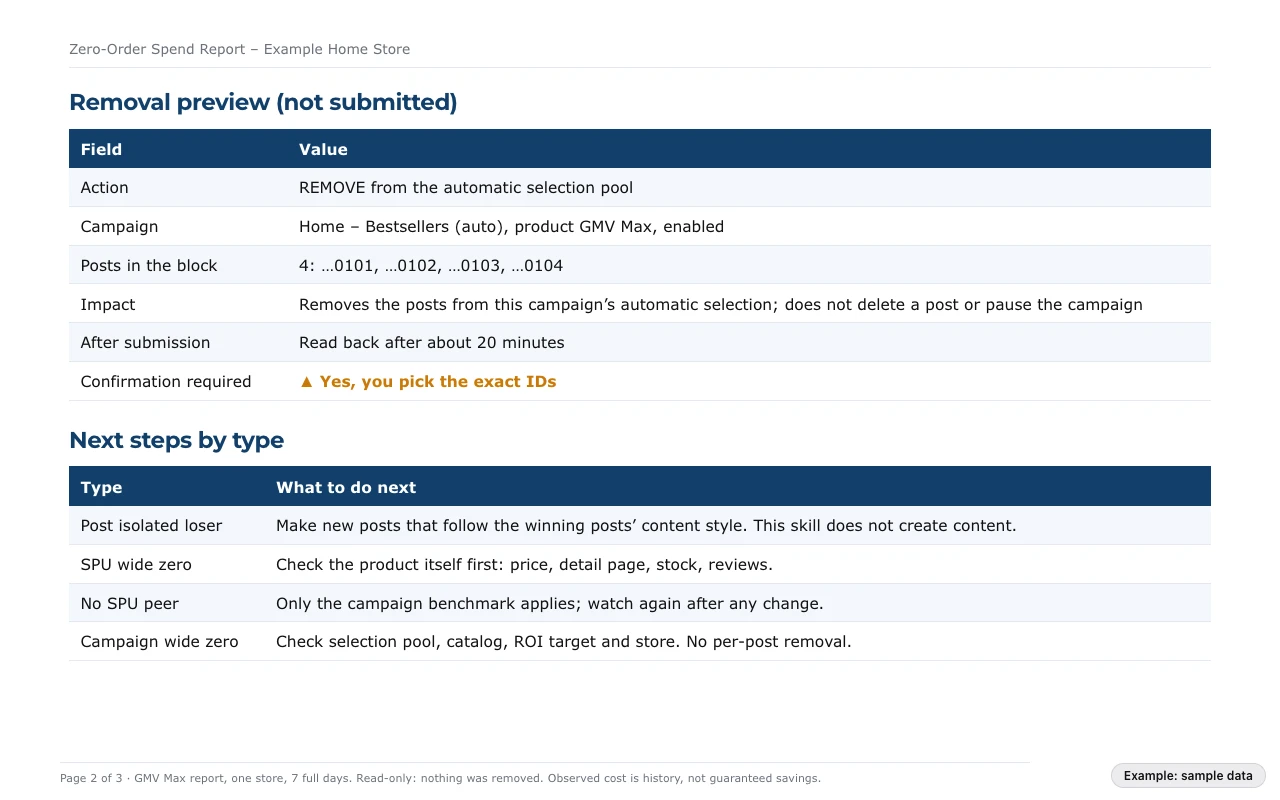
You get a preview of exact posts to remove from the automatic pool, so you can approve only some or none.
Before: Pausing a whole campaign would stop posts that do sell.
Made for
- TikTok Shop sellers running GMV Max product campaigns with automatic post selection
- Shop owners who see high GMV Max cost and few orders
- Marketers who want to review each post before removing it
Not made for
- Advertisers with manual ads, Smart+ materials or Search Ads: this covers GMV Max only
- Live GMV Max posts: they are reported but never removed by this skill
- Anyone who wants a whole campaign paused or budgets and ROI targets changed: it does neither
What you need
- AI assistantAn AI assistant that lets you add skills.
- Account or accessA connection from your AI assistant to your TikTok Ads account (a tool link, often called an MCP server) that can read your campaigns and reports. It starts read-only. It CAN CHANGE your account: only after you confirm exact post IDs, it removes those posts from a GMV Max campaign's automatic pool, which needs permission to manage GMV Max campaigns. Ecomdy can help you set it up.
- Your numbersYour TikTok Ads advertiser ID and the TikTok Shop store used by your GMV Max campaigns. Optionally the dates to look at (default the last 7 full days), a minimum cost floor and, if you want a removal, the exact post IDs you approve.
- Optional extra · optionalYour store must have GMV Max available on this advertiser. Removals need the campaign to be active and set to automatic post selection.
Replace the [brackets] with your own details, then paste it into your AI assistant.
Find posts with no orders
GMV Max cost is high and I barely get orders. For store [your store ID] under advertiser [your advertiser ID], find product posts that spent past what winning posts pay per order, and diagnose them. Do not remove anything.
You get: A store summary with the winning-post average cost per order, ranked posts with funnel types and numbers, and each post marked Act, Watch or Hold.
Audit a date range
Using [start date] through [end date], audit store [your store ID] under advertiser [your advertiser ID] for GMV Max posts that spent but recorded no orders. Show me the benchmark and the product evidence for each post.
You get: The benchmark with its sample, posts and the products they belong to, and the reasons they were or were not flagged. Nothing is changed.
Remove only posts I approve
From the latest preview, remove only these post IDs in campaign [campaign ID]: [post ID 1], [post ID 2]. Then tell me what to change next for them.
You get: A confirmation of the exact posts, the removal request, advice for each post type and a check about 20 minutes later that they show as excluded.
Choose your AI assistant, then follow the video to add this skill to it step by step.
Ready to try Find TikTok Shop posts that spend with no orders in GMV Max?
Source: from TikTok Agentic Hub